
- Published on
- ·18 min read
Fixing Enterprise SSO and OAuth Failures in Entra ID: An 8-Step Diagnostic Guide
If your enterprise users are hitting login errors after a recent app registration change, a tenant migration, or a new OAuth scope request, the failure is almost always traceable to one of eight specific misconfiguration categories. This guide walks through each one in diagnostic order — from the most common and fastest to verify, to the rarer but harder-to-spot issues that surface only under load or after a token cache expires.
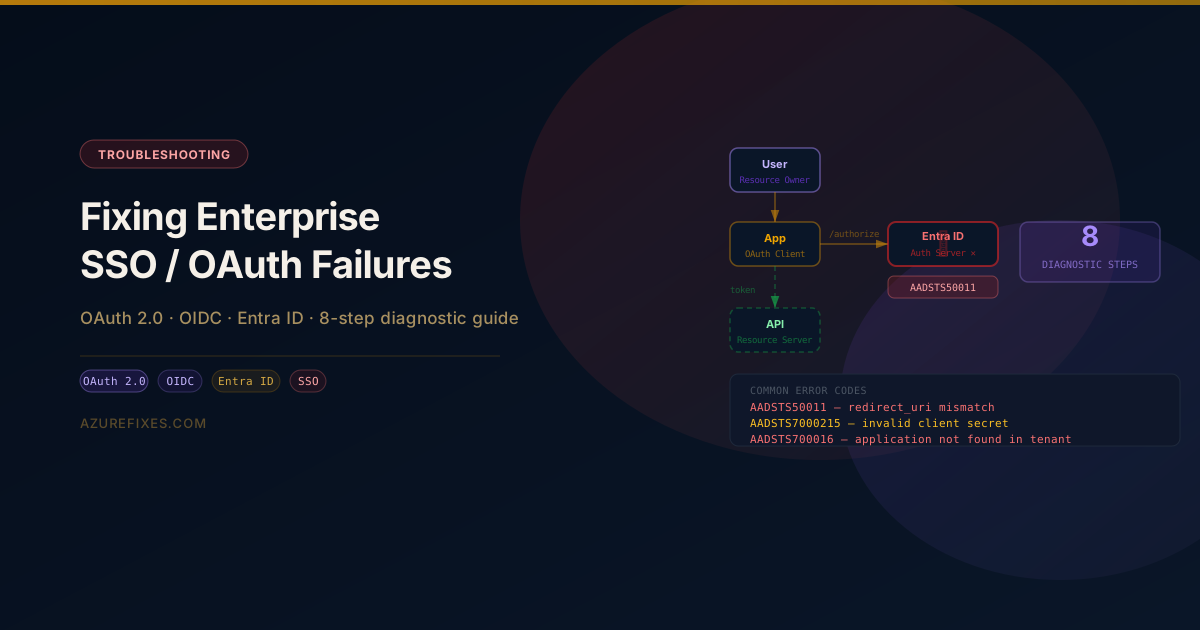
The error codes you will see most often:
| Code | Meaning |
|---|---|
AADSTS50011 | redirect_uri not registered |
AADSTS700016 | Application not found in tenant |
AADSTS7000215 | Invalid client secret |
AADSTS50076 | MFA required but not completed |
AADSTS65001 | Consent not granted for scope |
AADSTS90014 | Missing required claim in token |
OAuth 2.0 and OIDC: What the Flow Looks Like When It Works
Before diagnosing failures, it helps to have a precise picture of the components involved. In a standard enterprise deployment, four actors participate in every authentication:
- Resource Owner — the human user logging in
- OAuth Client — your application (web app, SPA, API gateway)
- Authorization Server — Entra ID (Microsoft's identity platform)
- Resource Server — your protected API or downstream service
The authorization code flow (the recommended grant type for web apps) goes through five distinct round trips. A misconfiguration at any step produces a different error code, which is why diagnosing SSO failures requires knowing which step failed — not just what the error message says.
Standard OpenID Connect Login Flow
For applications that use OIDC on top of OAuth 2.0 (which includes most enterprise web apps using MSAL or next-auth), the token exchange includes an additional id_token alongside the access_token. The id_token carries user identity claims (UPN, object ID, group memberships) that your application uses for authorization decisions.
Step 1 — Confirm the App Registration Exists in the Right Tenant
If you see AADSTS700016, the first thing to check is whether the application's client ID is registered in the tenant that the user is logging into.
# Verify the app exists in the target tenant
az ad app show \
  --id <your-client-id> \
  --query "{displayName: displayName, appId: appId, tenantId: publisherDomain}" \
  --output table
If this returns Resource 'guid' does not exist, the app registration was created in a different tenant, or someone deleted it.
The multi-tenant vs single-tenant distinction matters here. A single-tenant app (signInAudience: AzureADMyOrg) can only be used by users from the tenant where it was registered. If your users belong to a different tenant (partner login, B2B guest access, M&A scenario), the app must be either:
- Registered in the user's tenant, or
- Changed to multi-tenant (
signInAudience: AzureADMultipleOrgs) and the service principal must be consented in the user's tenant
# Check sign-in audience
az ad app show --id <client-id> --query signInAudience

# For multi-tenant: verify service principal exists in the guest tenant
# (Run this from a context authenticated to the guest tenant)
az ad sp show --id <client-id> --query "{id: id, displayName: displayName}"
If the service principal is missing in the guest tenant, the first user to attempt login will be prompted for admin consent, or the login will fail if admin consent is required by the guest tenant's policy.
Step 2 — Verify redirect_uri Registration
AADSTS50011 is the most common SSO error in production. It fires when the redirect_uri in the authorization request does not exactly match any URI registered in the app's authentication configuration.
The match is case-sensitive and includes the trailing slash. https://app.contoso.com/auth/callback and https://app.contoso.com/auth/callback/ are two different URIs.
To diagnose:
- Capture the exact authorization URL your application sends (use browser DevTools → Network tab → look for the request to
login.microsoftonline.com/{tenant}/oauth2/v2.0/authorize) - Copy the
redirect_uriparameter value (URL-decode it) - Compare character-by-character against what is registered in Azure Portal → App registrations → Authentication
# List all registered redirect URIs for the app
az ad app show \
  --id <client-id> \
  --query "web.redirectUris" \
  --output json

# Also check SPA redirect URIs (used for auth code flow with PKCE)
az ad app show \
  --id <client-id> \
  --query "spa.redirectUris" \
  --output json
To fix:
# Add the missing redirect URI (web platform)
az ad app update \
  --id <client-id> \
  --web-redirect-uris \
    "https://app.contoso.com/auth/callback" \
    "https://app.contoso.com/signin-oidc" \
    "https://localhost:3000/auth/callback"

# For SPA (implicit flow or auth code with PKCE)
az ad app update \
  --id <client-id> \
  --spa-redirect-uris \
    "https://app.contoso.com/auth/callback" \
    "https://localhost:3000/auth/callback"
Watch for: Staging and production apps that share one app registration. If you add the staging redirect URI to a production app registration, you're one step closer to a redirect URI confusion attack. Use separate app registrations for separate environments.
Step 3 — Check Client Secret Expiry
AADSTS7000215 (Invalid client secret) fires when the secret passed in the token request is wrong or expired. Client secrets in Entra ID have a maximum lifetime of 24 months, and there is no automatic rotation — the secret silently expires and the next token request fails.
# List all secrets for the app (note: values are not retrievable, only metadata)
az ad app credential list \
  --id <client-id> \
  --output table
The output shows endDateTime for each secret. If any expired credential appears to be the one your app is using, that's the culprit.
Short-term fix — rotate the secret:
# Create a new secret (note the value immediately — it is shown only once)
az ad app credential reset \
  --id <client-id> \
  --append \
  --years 1 \
  --display-name "prod-app-secret-2026"
Update the new secret value in your application's configuration (Key Vault, App Service config, or deployment pipeline).
Long-term fix — switch to certificate credentials or Managed Identity:
Client secrets are the weakest credential type. For enterprise workloads:
- Workloads in Azure (App Service, AKS, VM): Use Managed Identity. No secret to rotate, no expiry to track.
- Workloads outside Azure: Use a certificate credential instead of a secret. Certificate-based auth supports automated rotation via Key Vault and certificate authorities.
# Use managed identity instead of a client secret
# (from within an Azure resource — no secret needed)
az account get-access-token \
  --resource "https://graph.microsoft.com/" \
  --query accessToken \
  --output tsv
Step 4 — Validate Token Scopes and Consent
AADSTS65001 fires when your application requests a scope that has not been granted via admin consent or user consent.
Two types of consent exist:
- User consent — each individual user grants the permission the first time they log in
- Admin consent — a tenant admin pre-approves the permission for all users in the tenant; users skip the consent prompt
For most enterprise deployments, admin consent is required. Users typically cannot consent to permissions that access organizational data (Microsoft Graph, SharePoint, custom APIs marked as requiring admin consent).
# Check which delegated permissions are configured for the app
az ad app show \
  --id <client-id> \
  --query "requiredResourceAccess[].{resource: resourceAppId, permissions: resourceAccess}"
To verify consent was granted:
# Check service principal's OAuth2PermissionGrants (delegated)
az ad sp list \
  --filter "appId eq '<client-id>'" \
  --query "[0].id" \
  --output tsv

# Then:
az rest \
  --method GET \
  --url "https://graph.microsoft.com/v1.0/servicePrincipals/<sp-id>/oauth2PermissionGrants" \
  --query "value[].{resource: resourceId, scope: scope, consentType: consentType}"
To grant admin consent via CLI:
# Admin consent for a specific resource (Microsoft Graph in this example)
# Resource ID for Microsoft Graph: 00000003-0000-0000-c000-000000000000
az rest \
  --method POST \
  --url "https://graph.microsoft.com/v1.0/oauth2PermissionGrants" \
  --body '{
    "clientId": "<service-principal-object-id>",
    "consentType": "AllPrincipals",
    "resourceId": "<graph-service-principal-object-id>",
    "scope": "User.Read openid profile email"
  }'
Or via the portal: App registrations → your app → API permissions → Grant admin consent for [tenant].
Step 5 — Diagnose Conditional Access Policy Blocks
If users see an error page with a message referencing their device, location, or requiring MFA, a Conditional Access policy is blocking the login. These don't always produce AADSTS error codes — they may show a custom error page with a CorrelationId.
Retrieve the sign-in log to see which policy fired:
# Requires Microsoft.Entra.Reports.Read.AuditLogs.All permission
az rest \
  --method GET \
  --url "https://graph.microsoft.com/v1.0/auditLogs/signIns?\$filter=appId eq '<client-id>'&\$top=10&\$orderby=createdDateTime desc" \
  --query "value[].{status: status, ca: conditionalAccessStatus, policies: appliedConditionalAccessPolicies[].displayName, errorCode: status.errorCode, failureReason: status.failureReason}"
The appliedConditionalAccessPolicies array shows every CA policy that was evaluated, and the result field on each shows whether it passed, failed, or was not applied.
Common CA blocks in enterprise SSO scenarios:
| Block | Cause | Fix |
|---|---|---|
| Device compliance required | User's device not Intune-managed | Enroll device or add exception |
| MFA required, not satisfied | App doesn't support MFA challenge | Enable MFA in your MSAL config |
| Sign-in risk too high | Identity Protection flagged the login | Review risk event, reset credentials |
| Location blocked | Sign-in from outside named location | Add location to allowed list, or use VPN |
| App not in CA scope | New app not covered by existing policies | Add app to appropriate CA policy |
If the Conditional Access policy is intentionally blocking the login (e.g., a device compliance requirement your app's users should meet), the fix is on the user/device side, not the app registration side.
Step 6 — Check Token Validation in Your Application
If the login succeeds (Entra ID issues a token) but your application returns a 401 or 403 after receiving it, token validation is failing on the application side, not in Entra ID.
The most common token validation failures:
1. Audience (aud) claim mismatch
Your API expects the token to be issued for its own client ID or App ID URI, but the front-end app requested a token for Microsoft Graph or another resource.
# Wrong: the front-end requested a Graph token, not an API token
# Token aud: "https://graph.microsoft.com"
# Your API expected: "api://your-api-client-id"

# Fix: the client app must request a scope from your API, not Graph
# In MSAL:
scopes = ["api://your-api-client-id/access_as_user"]  # correct
# NOT:
scopes = ["https://graph.microsoft.com/User.Read"]   # wrong — Graph token
2. Issuer (iss) claim mismatch in multi-tenant apps
For multi-tenant apps, the issuer is tenant-specific: https://sts.windows.net/{tenant-id}/. If your token validation middleware has the issuer hardcoded to a single tenant, tokens from other tenants fail even though Entra ID issued them correctly.
# Azure AD v2 (MSAL): issuer template for multi-tenant
# iss = https://login.microsoftonline.com/{tenantId}/v2.0
# Use issuer validation with wildcard or disable per-tenant issuer check:

from fastapi import Depends
from azure.identity import DefaultAzureCredential

# python-jose / PyJWT — set issuer to None or validate with tenant extraction
jwt.decode(
    token,
    key=public_key,
    algorithms=["RS256"],
    audience="api://your-api-client-id",
    issuer=None,  # disable hardcoded issuer for multi-tenant
    options={"verify_iss": False}  # then validate tenantId from claims manually
)
3. Signing key rollover
Entra ID rotates its signing keys periodically (roughly every 6 weeks) and announces the rotation in the /.well-known/openid-configuration JWKS endpoint. If your application caches the public keys without TTL, it will fail to validate tokens signed with the new key until the cache is cleared or the app restarts.
# Check current Entra ID signing keys
curl -s "https://login.microsoftonline.com/{tenant-id}/discovery/v2.0/keys" \
  | jq '.keys[].kid'
Fix: cache JWKS with a TTL of 24 hours maximum, and refresh immediately on a signature validation failure (retry once with fresh keys before rejecting the token).
Step 7 — Test Silent Token Refresh (Refresh Token Expiry)
Enterprise SSO applications maintain sessions using refresh tokens. When the access token expires (default: 1 hour), the application silently exchanges the refresh token for a new access token. If this silent refresh starts failing, users see unexpected logout prompts or 401 errors mid-session — not at initial login.
Refresh token failures are harder to reproduce because they only appear after the initial access token expires.
Refresh token lifetime policy defaults (Entra ID):
| Token type | Default lifetime |
|---|---|
| Access token | 60–90 minutes |
| Refresh token (non-persistent) | 24 hours |
| Refresh token (persistent / KMSI) | 90 days |
| Session cookie (browser SSO) | Configurable via CA |
Common reasons silent refresh fails:
- Refresh token revoked — user changed password, admin revoked all sessions, or a Conditional Access policy changed
offline_accessscope not requested — without this scope, Entra ID does not issue a refresh token at all- Single-page app using implicit flow — implicit flow does not issue refresh tokens; switch to authorization code flow with PKCE
- iframe blocked — older OIDC libraries use a hidden iframe for silent refresh; modern browsers block third-party cookies inside iframes, which breaks this mechanism
# Check if offline_access is in the requested scopes
# (inspect the /authorize request in browser DevTools)
# scope=openid profile email offline_access api://your-api/access_as_user

# For SPA: verify you're using auth code flow with PKCE, not implicit
# In MSAL.js v2+:
const msalConfig = {
  auth: {
    clientId: "your-client-id",
    authority: "https://login.microsoftonline.com/your-tenant-id"
  }
};
// auth code + PKCE is used automatically in MSAL.js v2+ — no implicit flow
To test refresh token behavior in isolation:
# Exchange a refresh token manually (confirms token endpoint accepts it)
curl -X POST \
  "https://login.microsoftonline.com/{tenant-id}/oauth2/v2.0/token" \
  -H "Content-Type: application/x-www-form-urlencoded" \
  -d "grant_type=refresh_token" \
  -d "client_id=<client-id>" \
  -d "client_secret=<client-secret>" \
  -d "refresh_token=<refresh-token-value>" \
  -d "scope=openid profile email offline_access api://<client-id>/access_as_user"
If this returns a new access_token and refresh_token, the token endpoint is working correctly and the failure is in how your application is calling it.
Step 8 — Verify the High-Availability Token Caching Architecture
Enterprise apps that handle thousands of concurrent users need a shared, distributed token cache. Without it, each app instance or pod maintains its own in-memory token cache. When a user's session is routed to a different instance (pod restart, scale-out event, load balancer rebalance), the new instance has no cache entry and forces a full re-authentication — which users experience as an unexpected logout.
If you see a pattern of users getting logged out during deployments, after pod restarts, or during traffic spikes, this is almost certainly the cause.
The high-availability architecture to target:
- Distributed token cache: Azure Cache for Redis, shared across all app instances. MSAL supports custom token cache serialization — plug in a Redis-backed implementation.
- Sticky sessions as a crutch: ARR affinity (App Service) or pod affinity (Kubernetes) routes a user's requests to the same instance. This avoids cache misses but breaks during pod restarts and doesn't scale cleanly. Use it only as a short-term workaround while implementing Redis.
- Key Vault for secrets: Client secrets and certificate credentials retrieved from Key Vault at startup, not hardcoded in config. Rotation doesn't require a redeployment.
- Application Insights auth telemetry: Log token acquisition success/failure, cache hit rates, and refresh token exchanges. Without this telemetry, token cache problems are invisible until users complain.
Implementing a Redis-backed MSAL token cache (.NET):
// Add to Program.cs / Startup.cs
builder.Services.AddStackExchangeRedisCache(options => {
    options.Configuration = builder.Configuration.GetConnectionString("Redis");
    options.InstanceName = "msal-token-cache:";
});

builder.Services
    .AddAuthentication(OpenIdConnectDefaults.AuthenticationScheme)
    .AddMicrosoftIdentityWebApp(builder.Configuration.GetSection("AzureAd"))
    .EnableTokenAcquisitionToCallDownstreamApi()
    .AddDistributedTokenCaches(); // <-- uses IDistributedCache (Redis)
For Python (MSAL):
import redis
import msal
import json

redis_client = redis.Redis.from_url(os.environ["REDIS_URL"])

class RedisTokenCache(msal.SerializableTokenCache):
    CACHE_KEY = "msal_token_cache"

    def __init__(self):
        super().__init__()
        cached = redis_client.get(self.CACHE_KEY)
        if cached:
            self.deserialize(cached.decode())

    def save(self):
        if self.has_state_changed:
            redis_client.setex(
                self.CACHE_KEY,
                86400,  # 24h TTL
                self.serialize()
            )
            self.has_state_changed = False

cache = RedisTokenCache()
app = msal.ConfidentialClientApplication(
    client_id=os.environ["CLIENT_ID"],
    client_credential=os.environ["CLIENT_SECRET"],
    authority=f"https://login.microsoftonline.com/{os.environ['TENANT_ID']}",
    token_cache=cache
)
Complete Diagnostic Checklist
Run these checks in order. Each one rules out a category of failures before moving to the next:
# 1. App registration exists in the right tenant
az ad app show --id <client-id> --query "{displayName: displayName, signInAudience: signInAudience}"

# 2. Redirect URIs registered correctly
az ad app show --id <client-id> --query "{web: web.redirectUris, spa: spa.redirectUris}"

# 3. Client secret not expired
az ad app credential list --id <client-id> --output table
# Check endDateTime column

# 4. Admin consent granted for required scopes
az rest --method GET \
  --url "https://graph.microsoft.com/v1.0/servicePrincipals(appId='<client-id>')/oauth2PermissionGrants" \
  --query "value[].scope"

# 5. No CA policy blocking sign-in (check sign-in logs)
az rest --method GET \
  --url "https://graph.microsoft.com/v1.0/auditLogs/signIns?\$filter=appId eq '<client-id>'&\$top=5&\$orderby=createdDateTime desc" \
  --query "value[].{failureReason: status.failureReason, caStatus: conditionalAccessStatus, policies: appliedConditionalAccessPolicies[].displayName}"

# 6. Token audience matches your API (inspect access token)
# Decode the JWT at jwt.ms or base64-decode the payload
# Verify: "aud" == "api://<your-client-id>" or your App ID URI

# 7. offline_access scope requested (check /authorize URL params)
# Expected: scope=openid profile email offline_access ...

# 8. Token cache shared across instances
# Check if Redis is configured, or if sticky sessions are enabled
az webapp config show --resource-group <rg> --name <app> \
  --query "clientAffinityEnabled"
# true = sticky sessions enabled (workaround in place, not permanent fix)
Reading Correlation IDs from Entra ID Error Pages
When Entra ID shows an error page directly (not your app), the page includes a Correlation ID and Request ID. These are essential for diagnosing failures that don't produce useful AADSTS codes — particularly Conditional Access blocks and federated identity failures.
# Look up a specific sign-in using the correlation ID
az rest \
  --method GET \
  --url "https://graph.microsoft.com/v1.0/auditLogs/signIns?\$filter=correlationId eq '<correlation-id>'" \
  --query "value[].{status: status, ca: appliedConditionalAccessPolicies, location: location, device: deviceDetail}"
Pass the Correlation ID to Microsoft Support if you open a ticket. Without it, support cannot locate the specific sign-in event in Microsoft's internal telemetry.
Key Takeaways
Start with the AADSTS error code — each code maps to a specific misconfiguration. Don't guess; look up the exact code before investigating.
The redirect_uri match is exact and case-sensitive — trailing slashes, HTTP vs HTTPS, and port numbers all matter. Compare the URI in the authorization request to the registered value character-by-character.
Client secrets expire silently — set a calendar reminder 30 days before the expiry date, or migrate to Managed Identity (for Azure-hosted workloads) or certificate credentials (for everything else). There is no built-in expiry notification in Entra ID by default.
Token validation failures happen in your code, not Entra ID — if Entra ID issued a token and your API still returns 401, check the
aud,iss, andexpclaims in the JWT, and verify your JWKS cache refreshes automatically after key rollover.Distributed token caching is mandatory for multi-instance deployments — sticky sessions mask the problem but break during deployments. Redis-backed token caches solve it permanently with about 20 lines of configuration.
Sign-in logs are your best diagnostic tool — Entra ID logs every authentication attempt with full detail about which CA policies applied, what failed, and why. Access them via Microsoft Entra admin center or the Graph API before spending time guessing.
← Older
Diagnosing Kubernetes DNS Resolution Failures: CoreDNS Upstream Forwarding Broken by resolv.conf Drift
Newer →
Fixing Azure VPN Gateway High CPU: BGP Route Explosion Diagnosis and Fix
Related Articles
Fixing Azure WAF False Positives: A 7-Phase Diagnostic Guide
If Azure WAF is blocking legitimate traffic after a policy update, new deployment, or rule set upgrade, false positives are the most common cause. This guide walks through 7 diagnostic phases to identify, reproduce, and safely exclude the offending rule — without disabling WAF protection.
Fixing Azure VPN Gateway High CPU: BGP Route Explosion Diagnosis and Fix
If your VPN Gateway CPU is above 85% while traffic volume looks normal, BGP route bloat is almost certainly the cause. This guide covers the exact commands to diagnose it, route summarization on the CE router, an Azure-side prefix filter for defense in depth, and when to upgrade the gateway SKU.
Diagnosing Kubernetes DNS Resolution Failures: CoreDNS Upstream Forwarding Broken by resolv.conf Drift
If some pods in your AKS cluster resolve external DNS names fine and others fail — from the same Deployment, same image, same config — the variable is the node. This guide covers the exact test sequence to isolate CoreDNS upstream forwarding failures, identify /etc/resolv.conf drift on worker nodes, and fix it without reprovisioning.
How to Diagnose Azure ExpressRoute Gateway Control-Plane Failure
If your ExpressRoute Gateway shows BGP Connected but cross-premises traffic is down and effective routes on spoke VNet NICs are empty, the gateway has a control-plane failure. This guide covers the diagnostic commands to confirm it, a regional failover procedure, and the zone-redundant HA architecture to prevent recurrence.
Terraform vs Bicep: Choosing IaC for Azure in 2026
An honest comparison of Terraform and Bicep for Azure infrastructure in 2026. When each tool wins, where each hurts, and the hybrid pattern most real teams end up adopting.